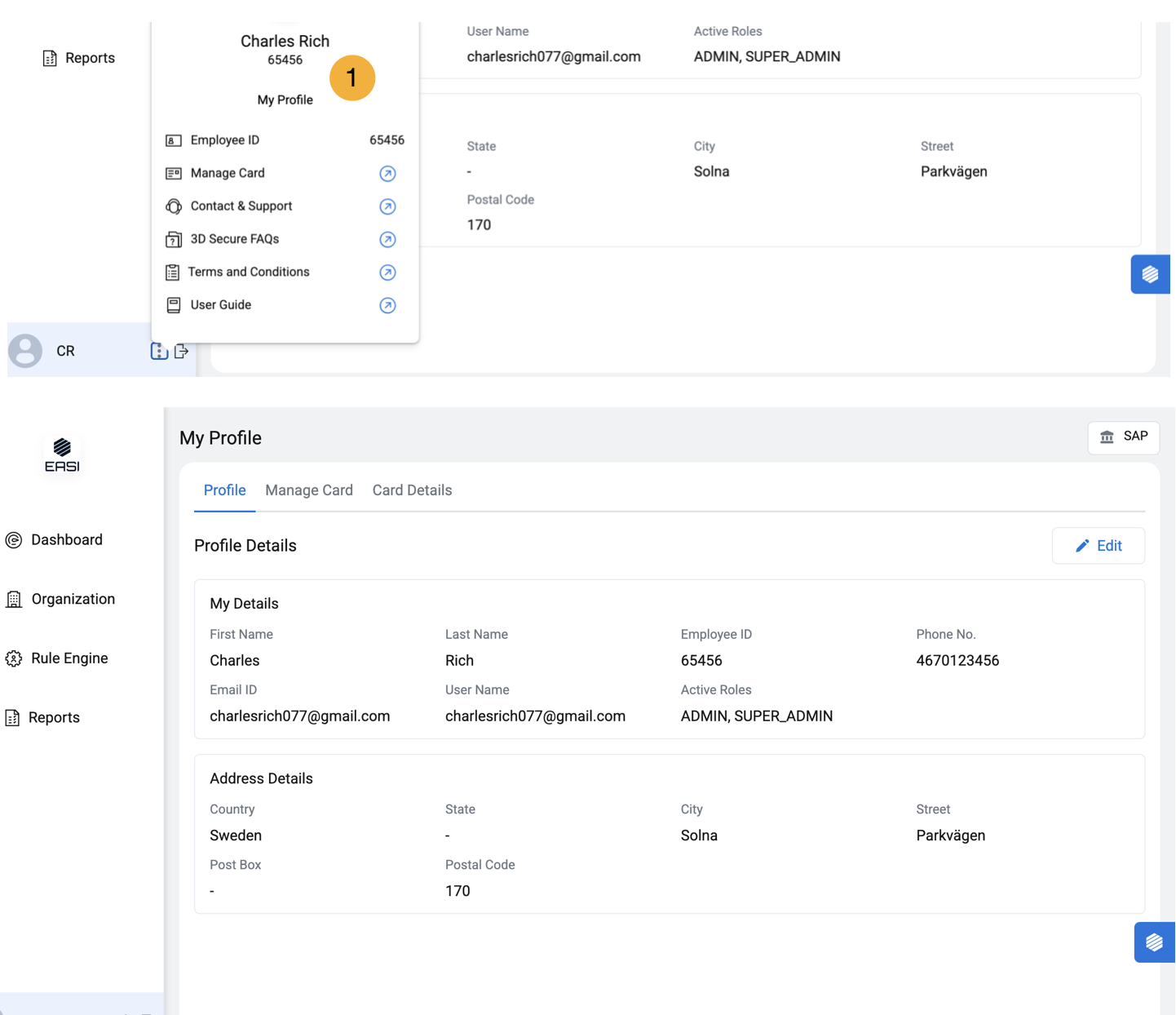
Admins can view their personal information, active roles, and address details under the Profile section. If they are a cardholder, they can also access and view details in the Manage Card and Card Details pages related to their account.
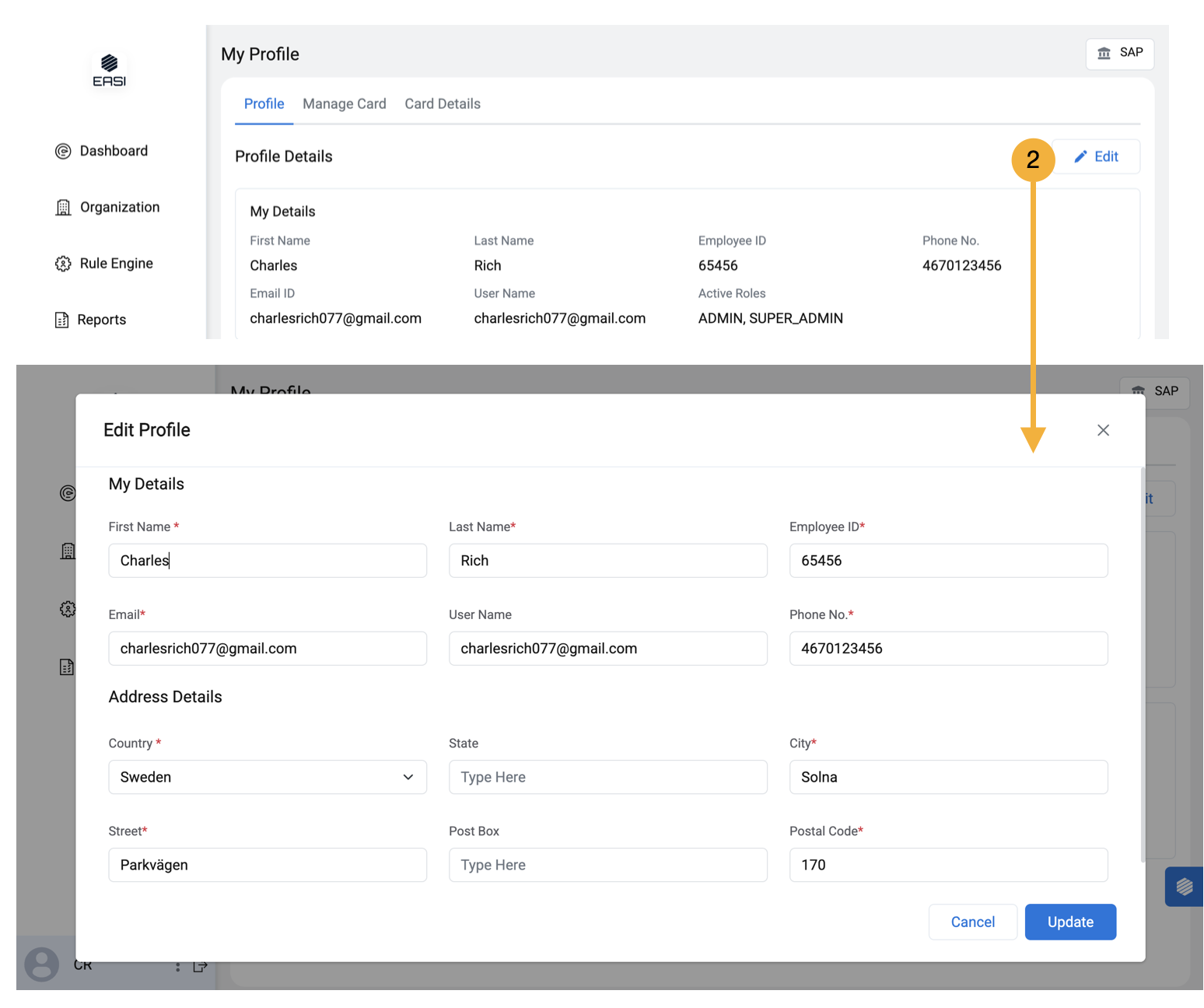
2. Edit Profile
In the modal window, all fields are editable except for ID, email and username. Updated details will be reflected under ‘Profile’.
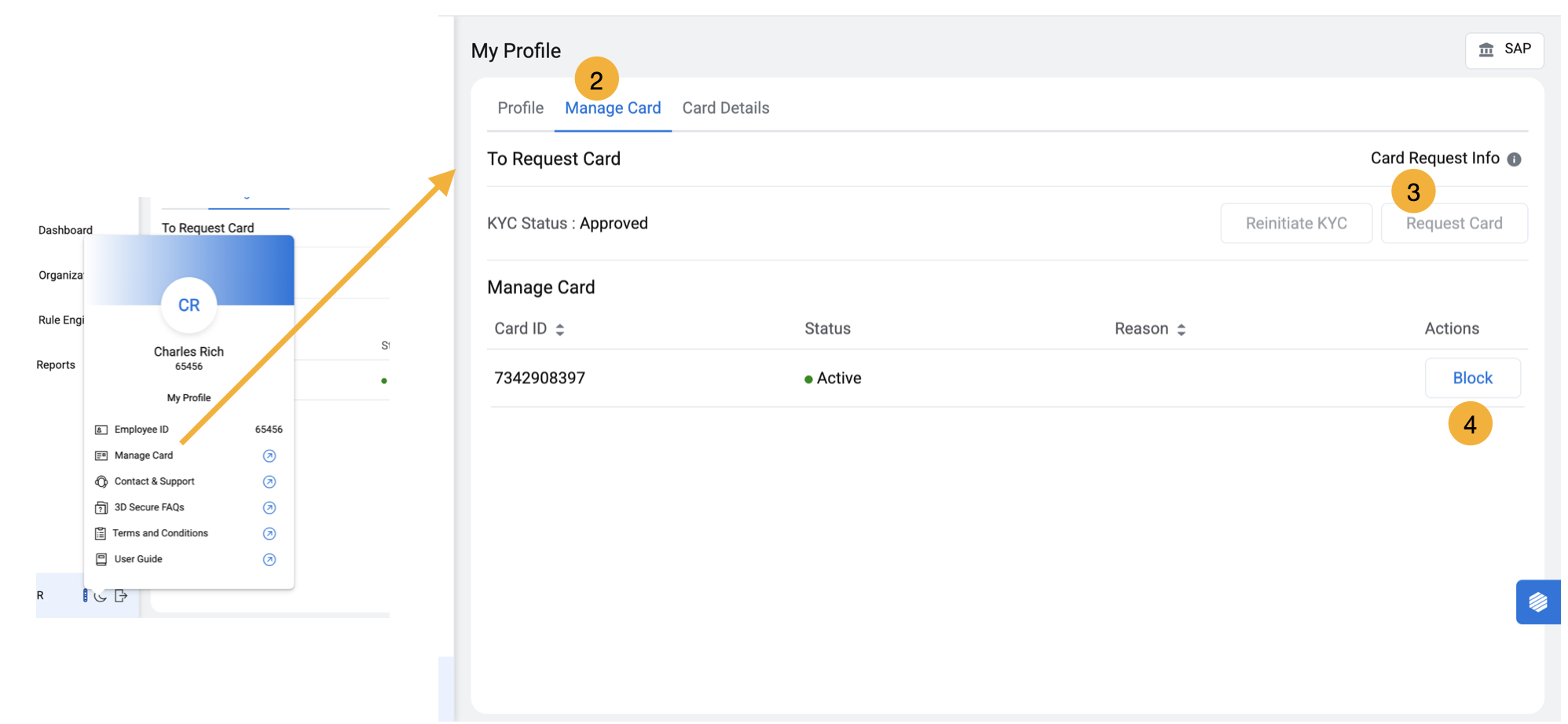
2. Manage Card
This segment provides information such as KYC status, active and blocked cards, with features for reinitiating KYC and requesting cards.
3. Request Card
Enabled only when all cards are permanently blocked; disabled when any card is active or temporarily blocked.
4. Block Card
Cards can be blocked using this feature in Manage Card page
Steps To Block Card i.Click Block to open the modal window. ii.Select the Reason to block. iii.Provide notes in the modal window if required. iv.Confirm the card block.
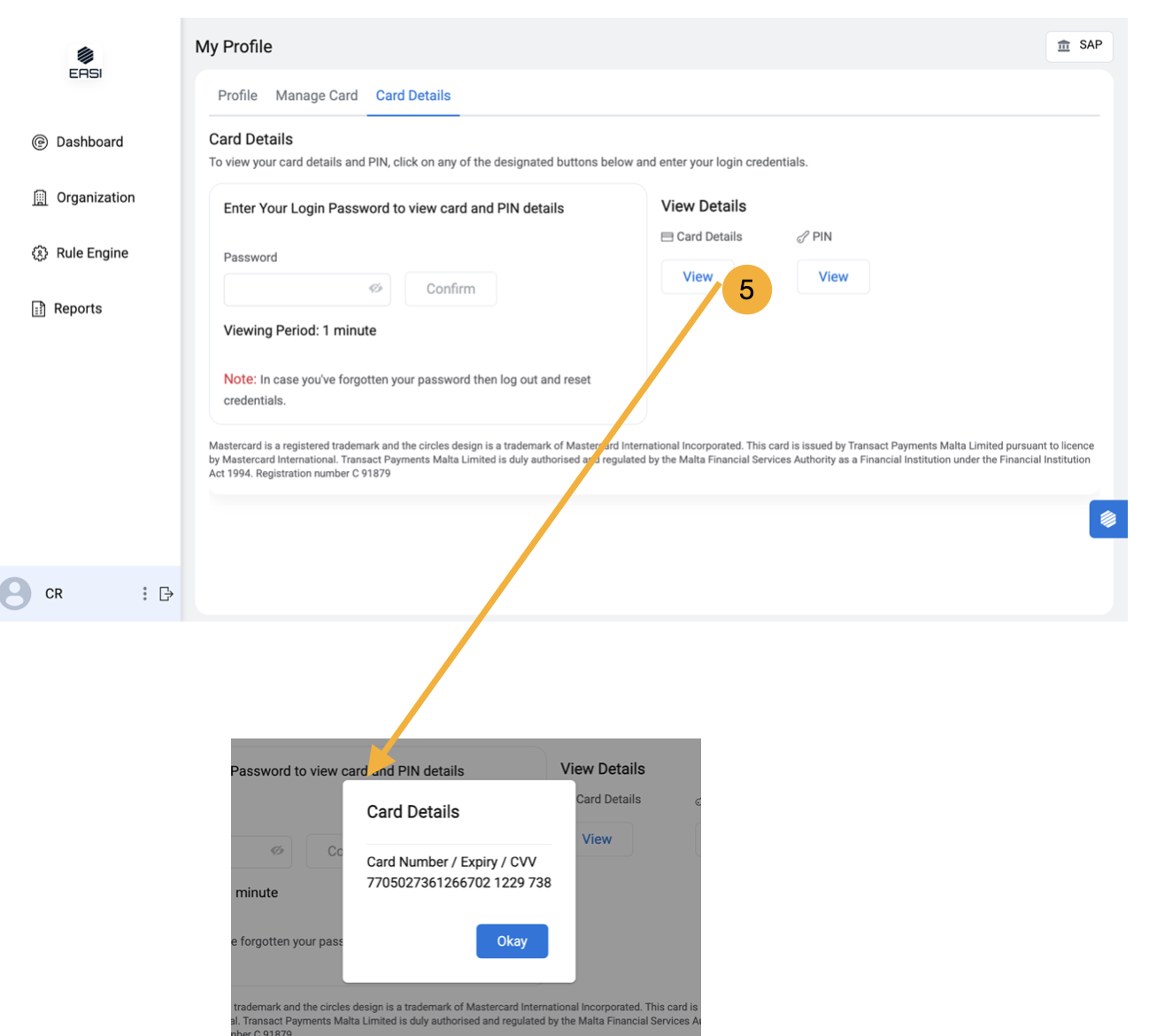
5. Steps To View Card Details
i.Go to “Card Details” in “My Profile.” ii.Enter your password to confirm your identity. Once the correct password is entered, the “Card Details” and “PIN” buttons will be enabled for one minute. iii.Click the appropriate buttons to view the details in the respective pop-ups. iv.Close the pop-ups after viewing the information
1. Language
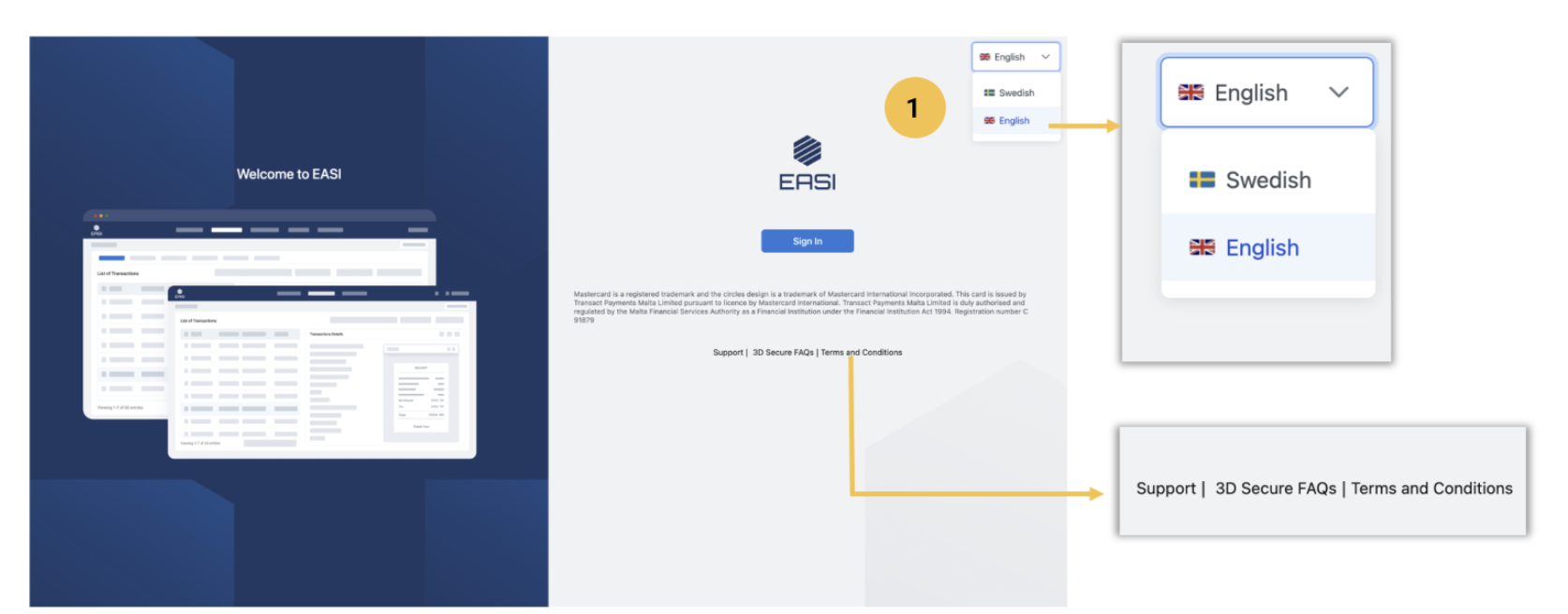
Admins can change the language setting for the portal using the feature available on the sign-in page.
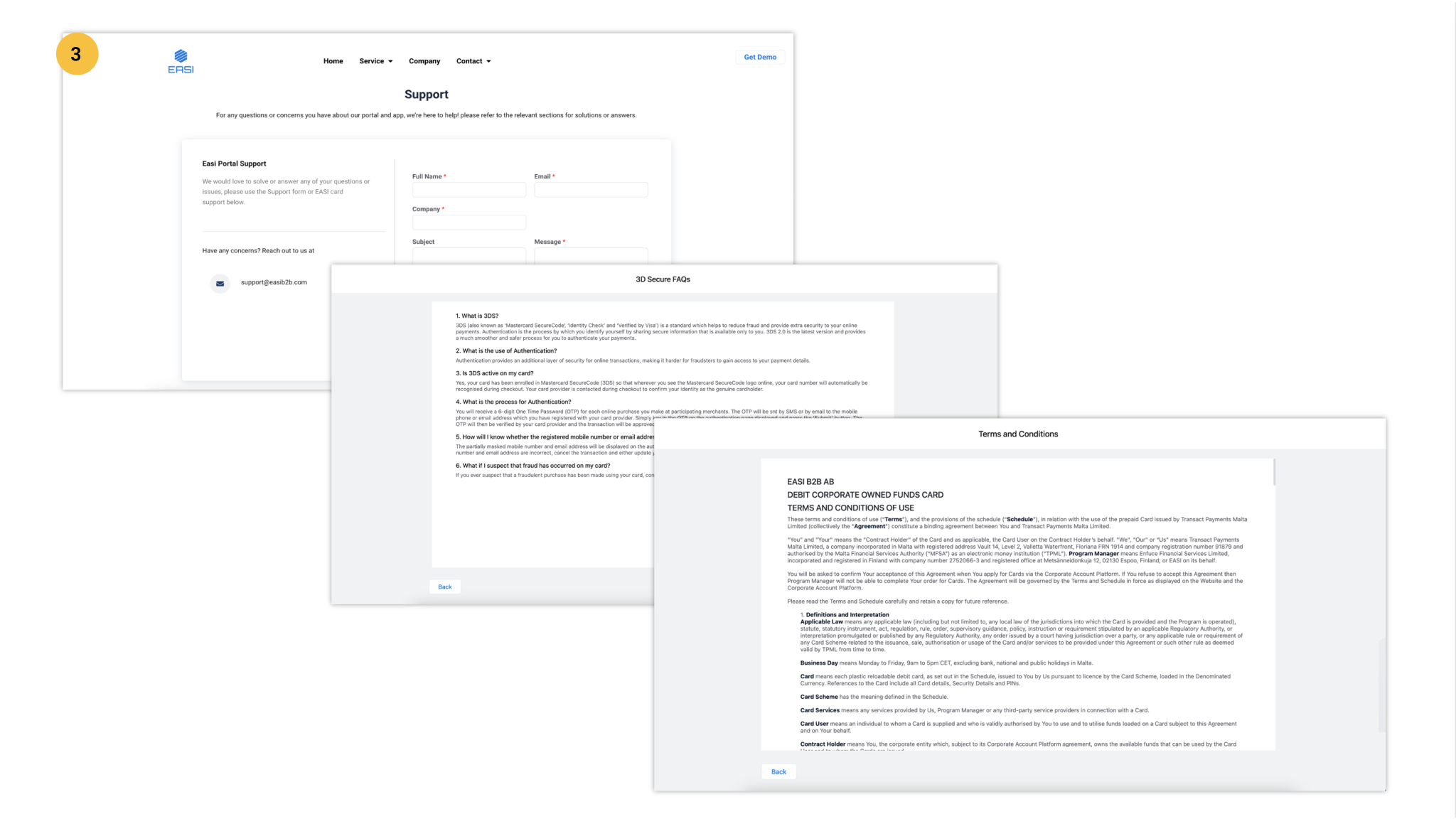
3.The Support Page will be displayed in a new browser tab when redirected to the EASI website. The 3D Secure FAQs and Terms & Conditions sections are available directly within the portal.
1. Timeout alert and Session Extension
Admins will receive an alert before a session times out. They can extend their session by selecting the “Extend Session” option from the Timeout Alert modal window.