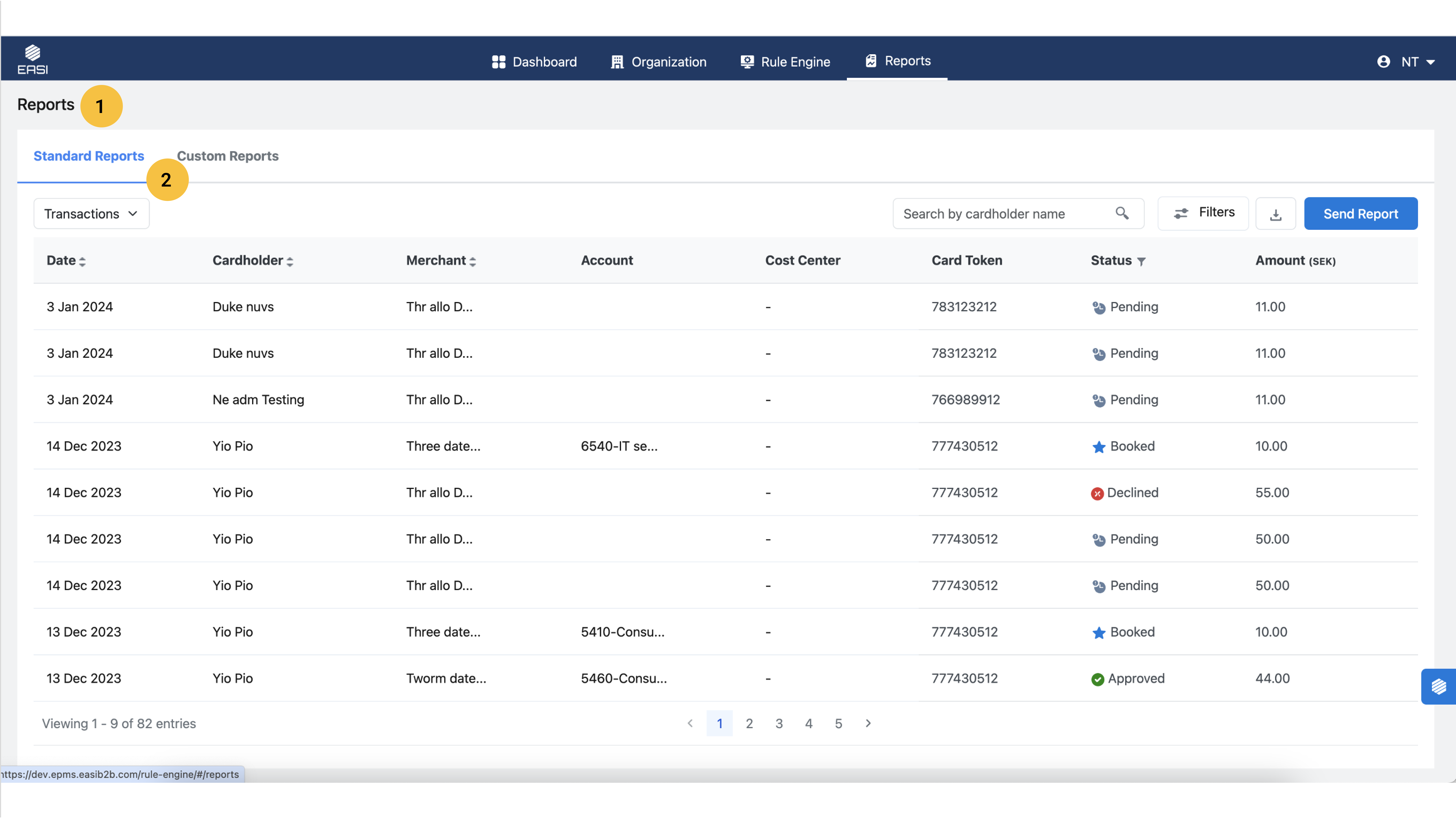
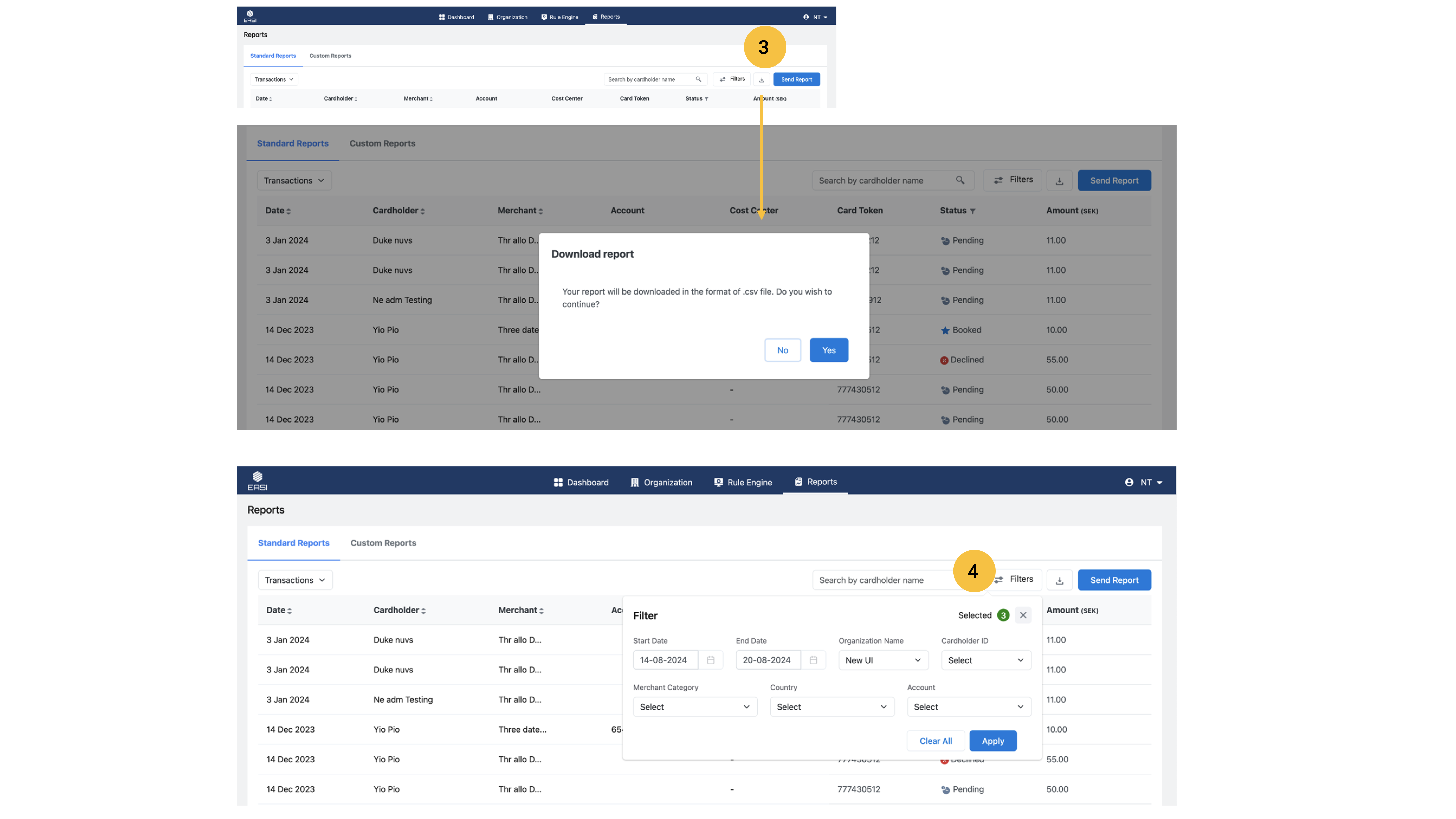
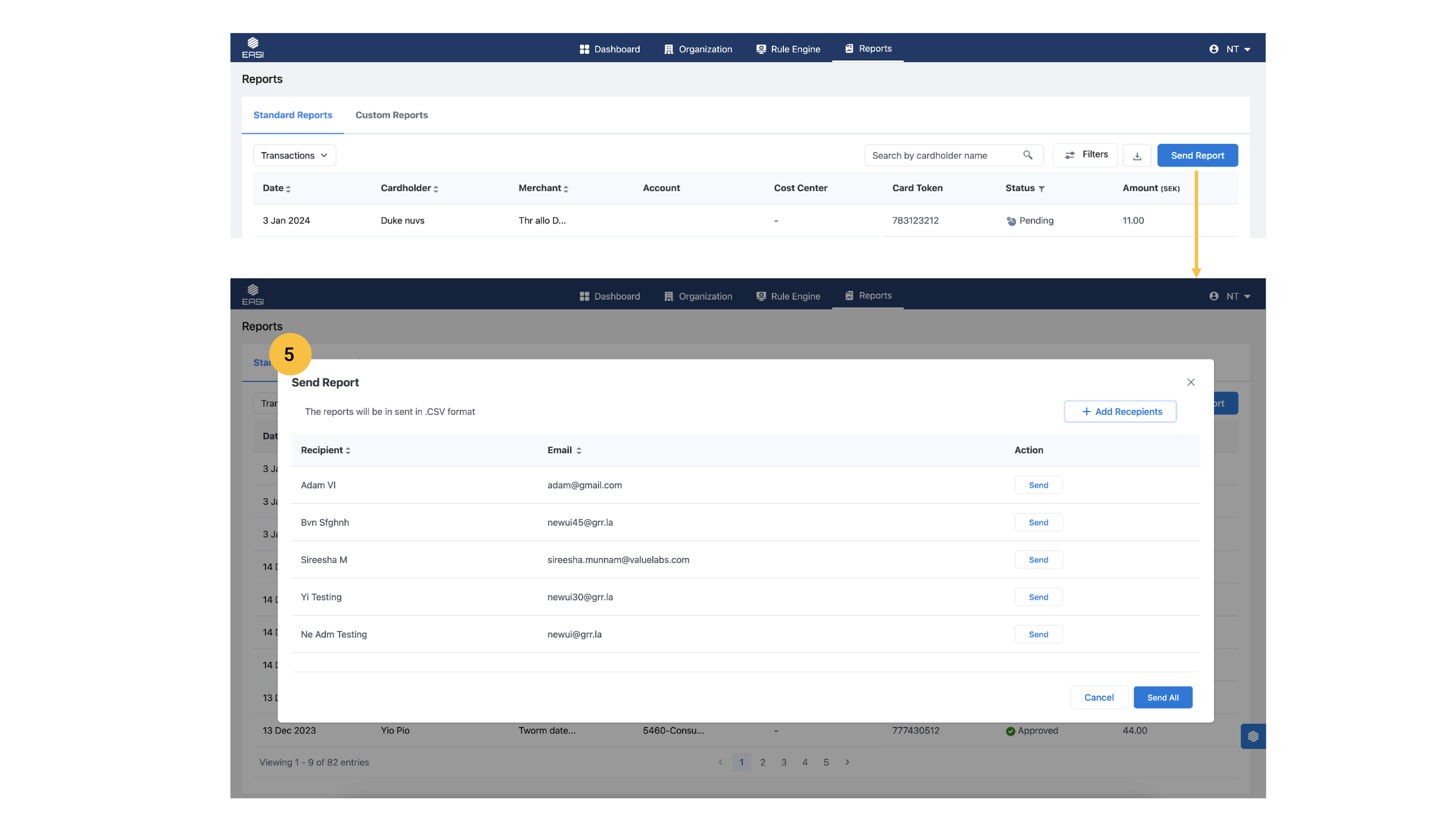
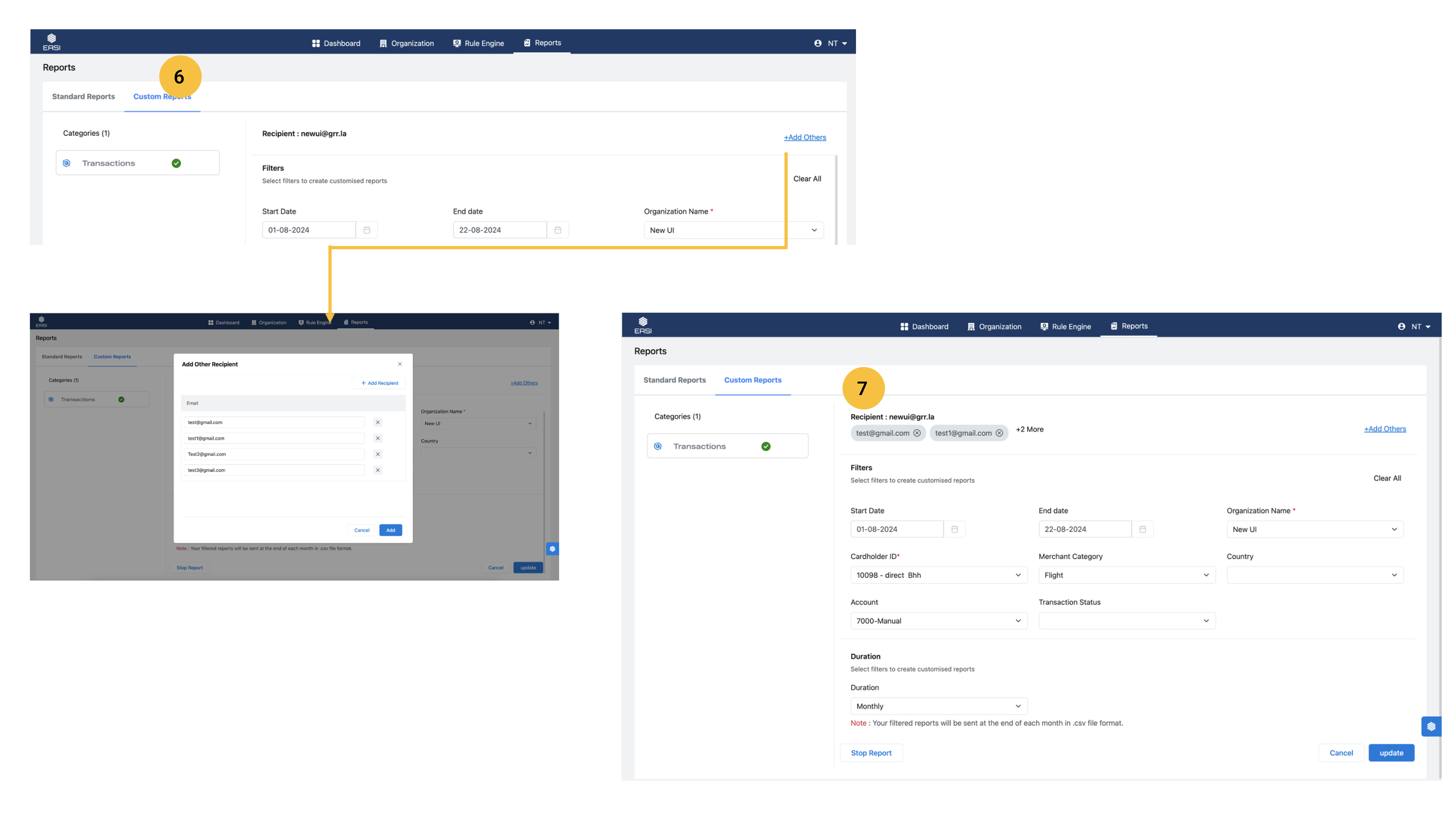
It allow admins to customize the report format and send it according to the chosen reporting cycle. Admins can create custom reports using provided filters and send them to selected recipients. The custom report cycle can be initiated based on the specified time duration setting.
<span data-metadata=""><span data-buffer="">7. Steps to create and initiate Custom Reporting<span data-metadata="">
i.Open “Custom Reports” page. ii.Add recipients for the custom reports. iii.Customize the report format using “Filters.” iv.Choose the reporting cycle “Duration.” v.Initiate/update the custom reporting process. Note: Custom reports can be updated or stopped as needed at any time. .
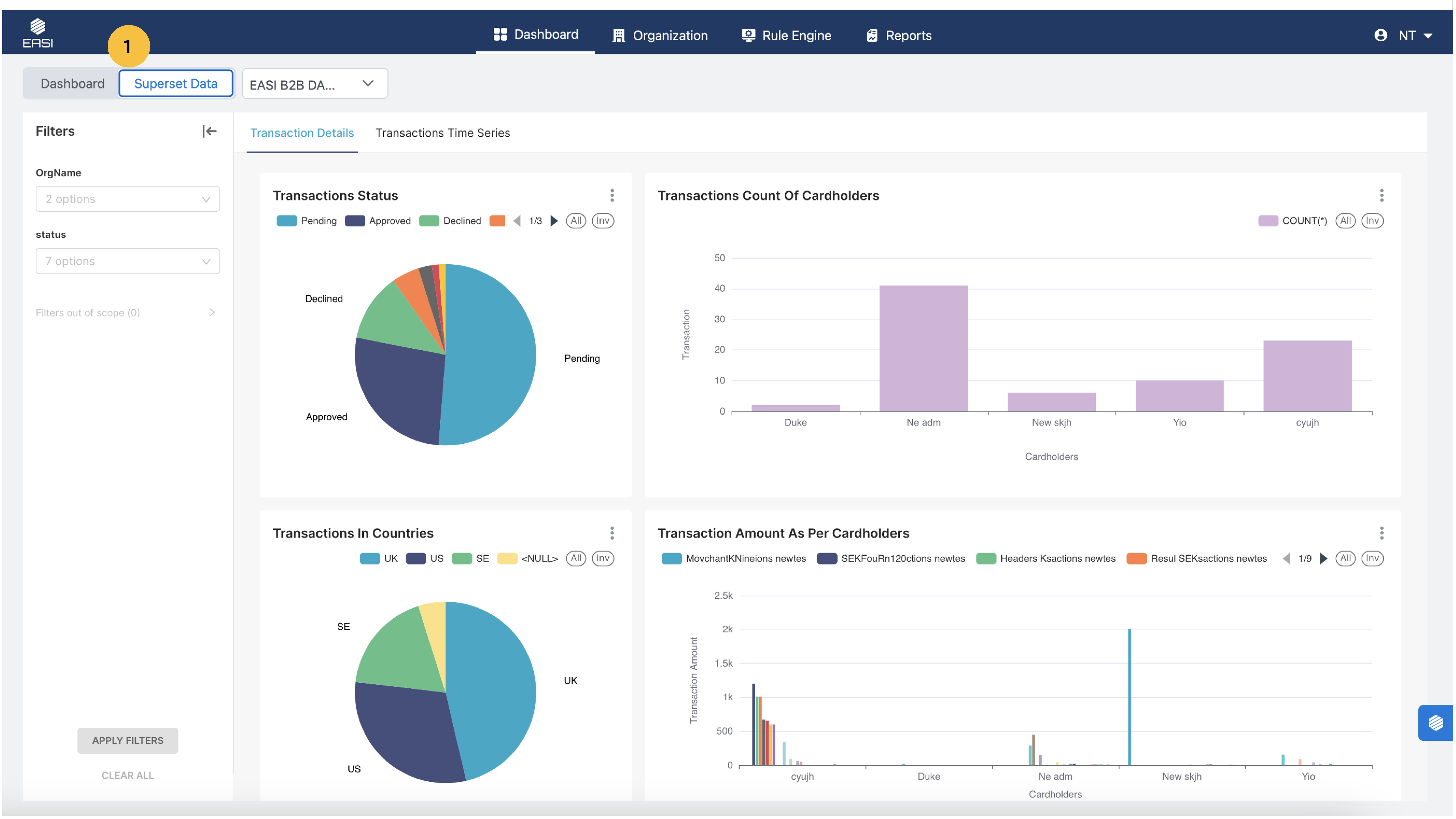
Super Set
1. Superset
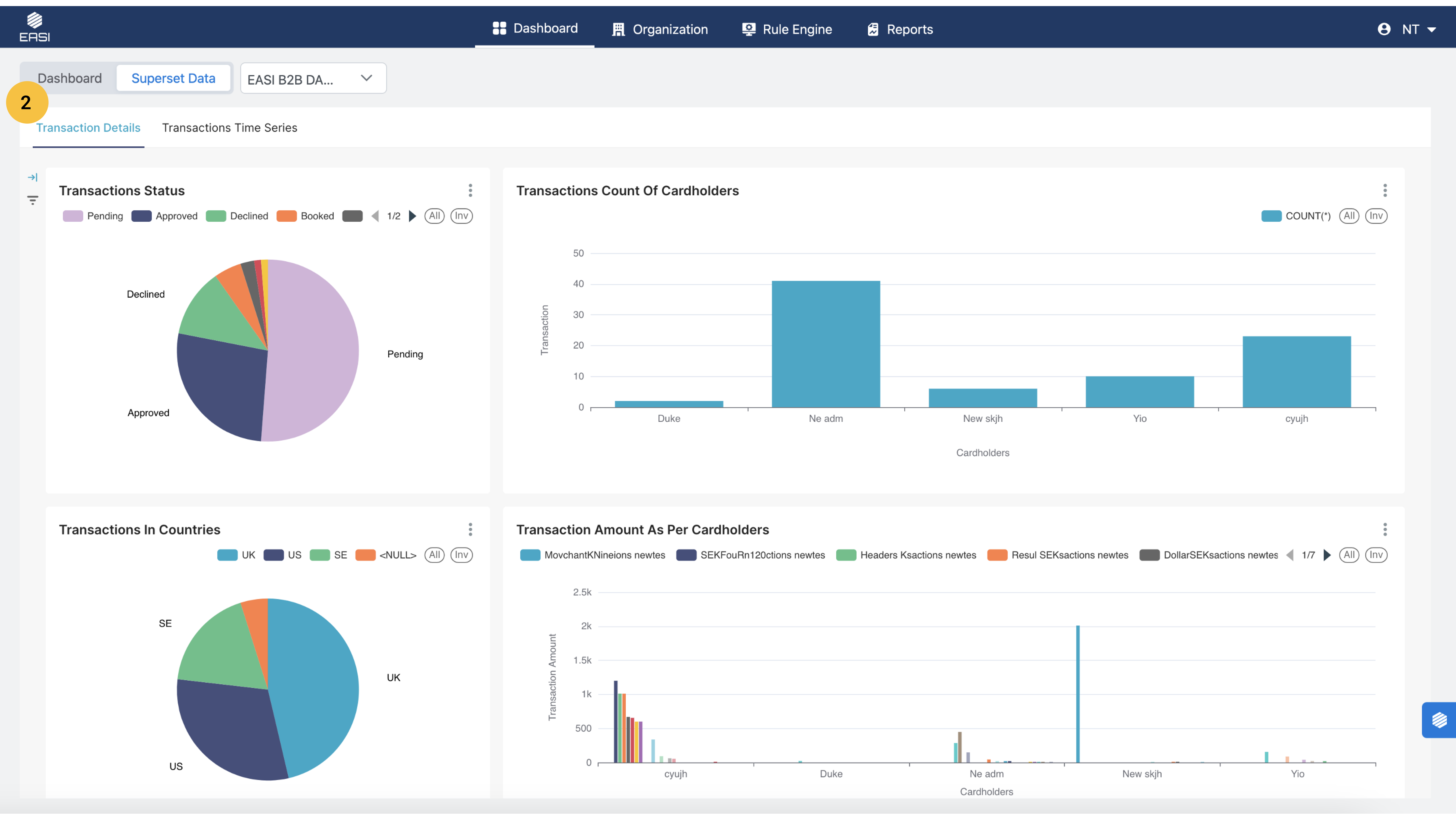
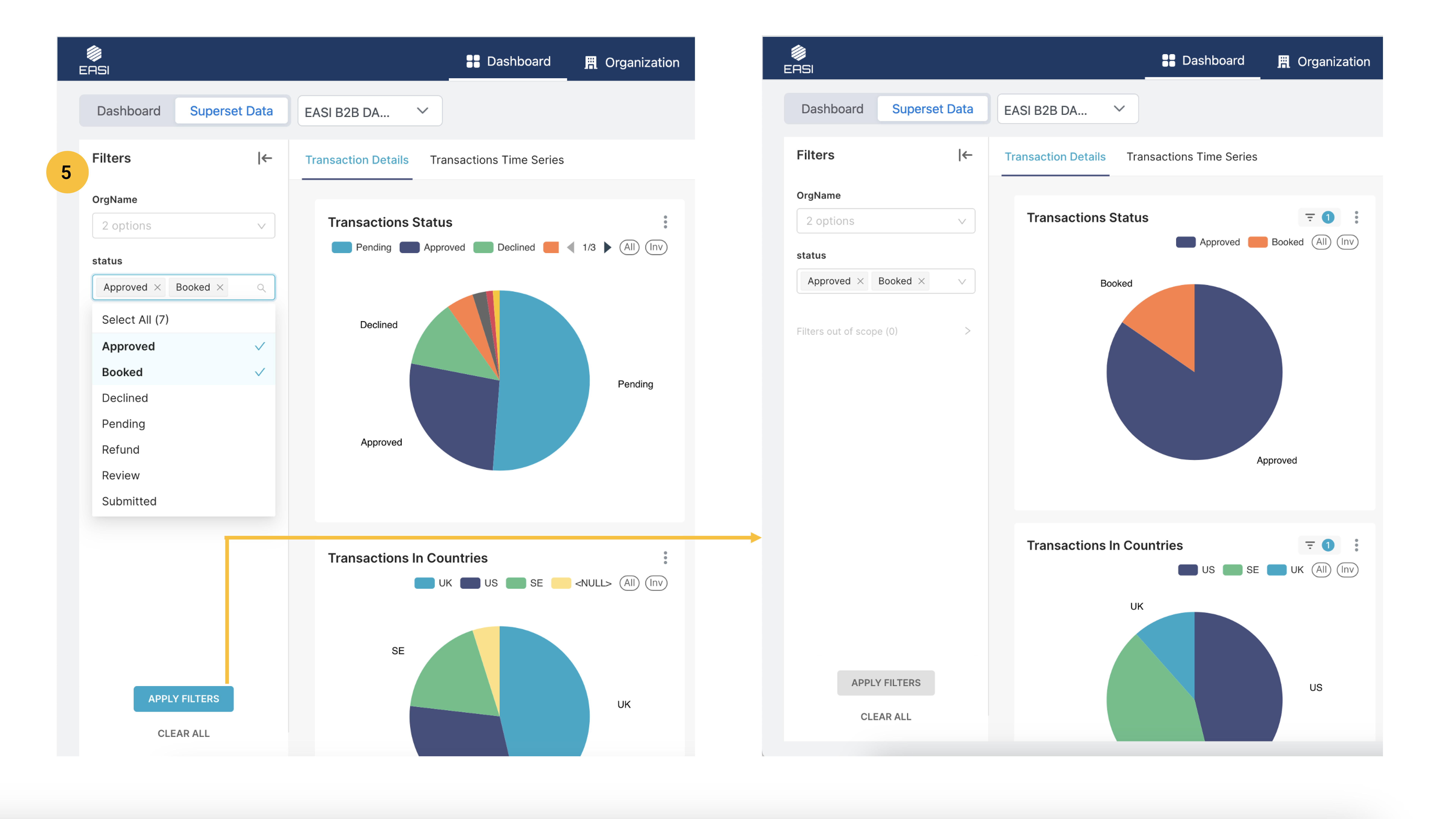
The charts and graphs display transaction statuses, merchants, amounts, and time. The chart data is divided into two major categories: •Transaction Details •Transactions Time Series.
2. Transactions Details
A variety of graphs displaying information related to transactions status categories, merchants, cardholders and their expense amounts.
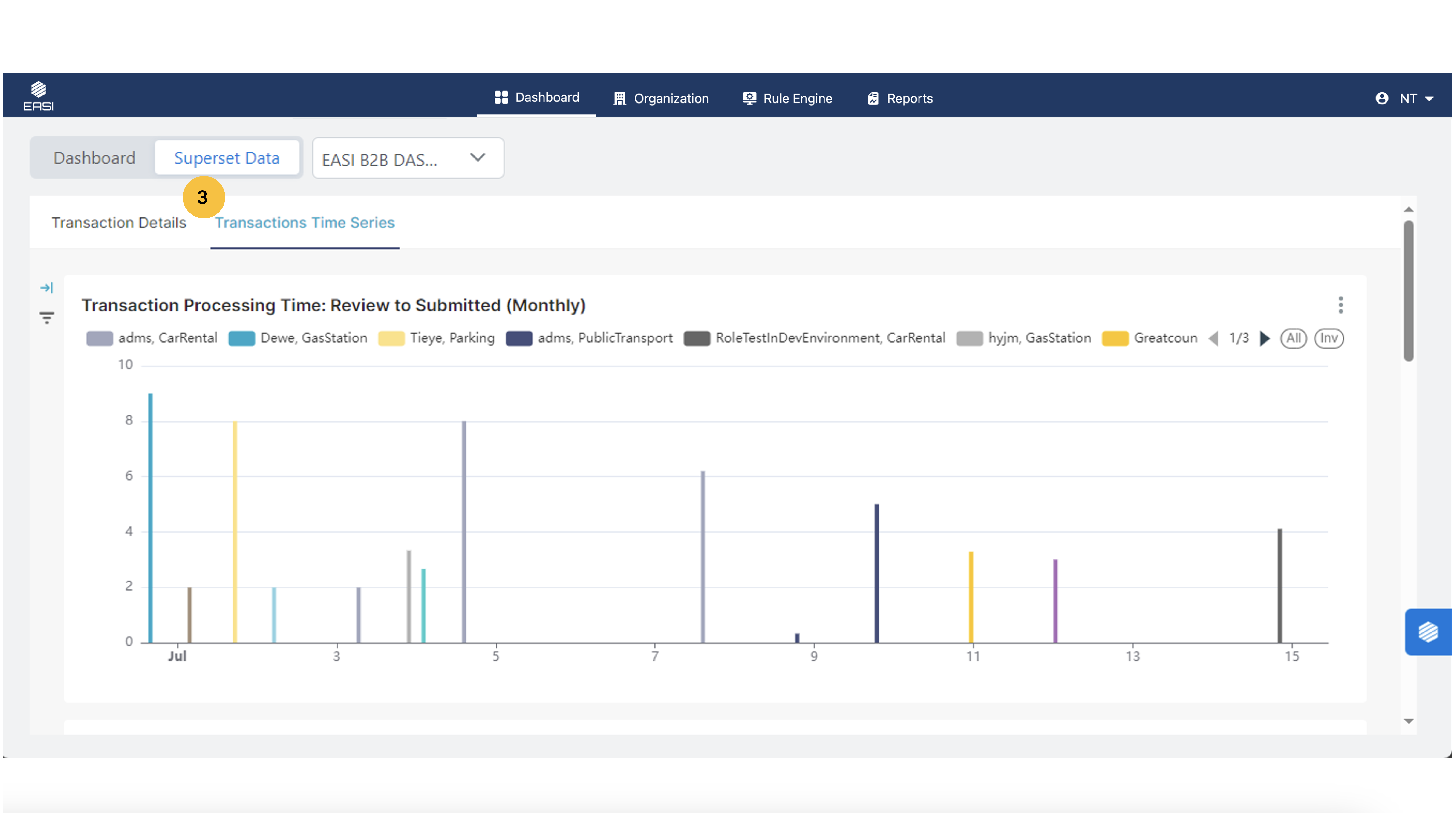
3.Transactions Time Series
A variety of graphs displaying information related to transactions, merchants, and time.
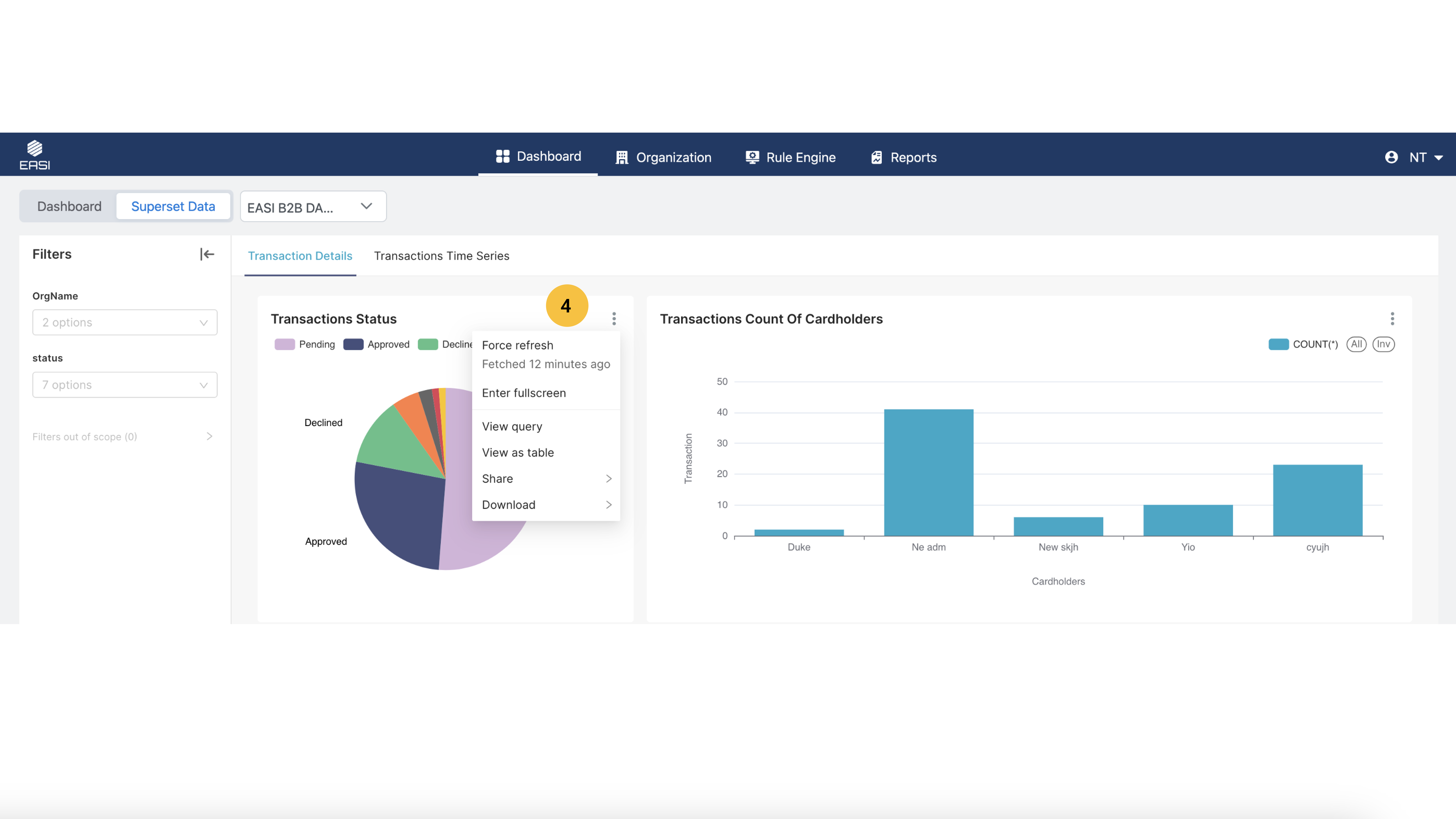
4.Chart Menu
Hosts various functionalities including refresh, full screen, view query, table, share, and download.