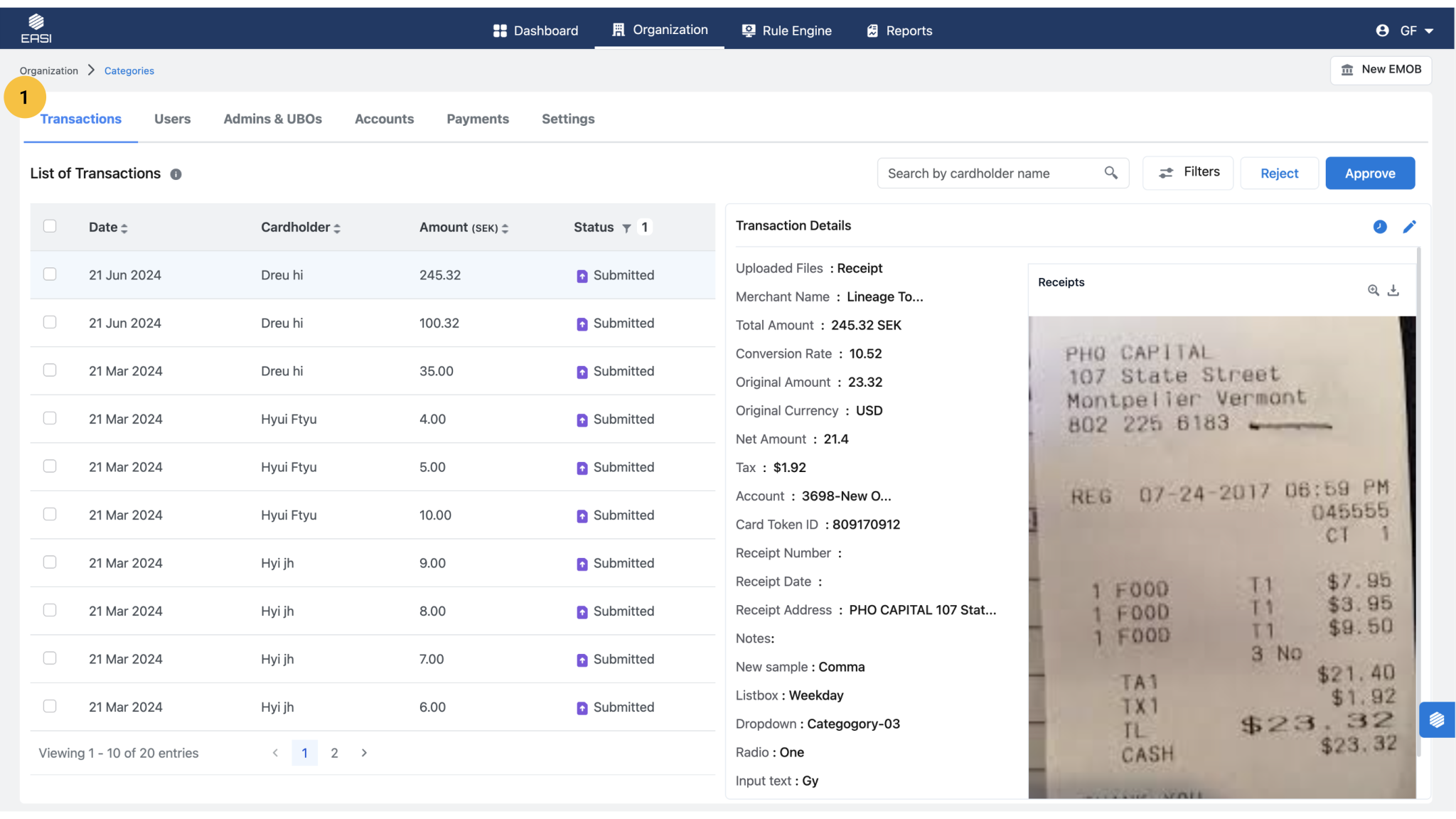
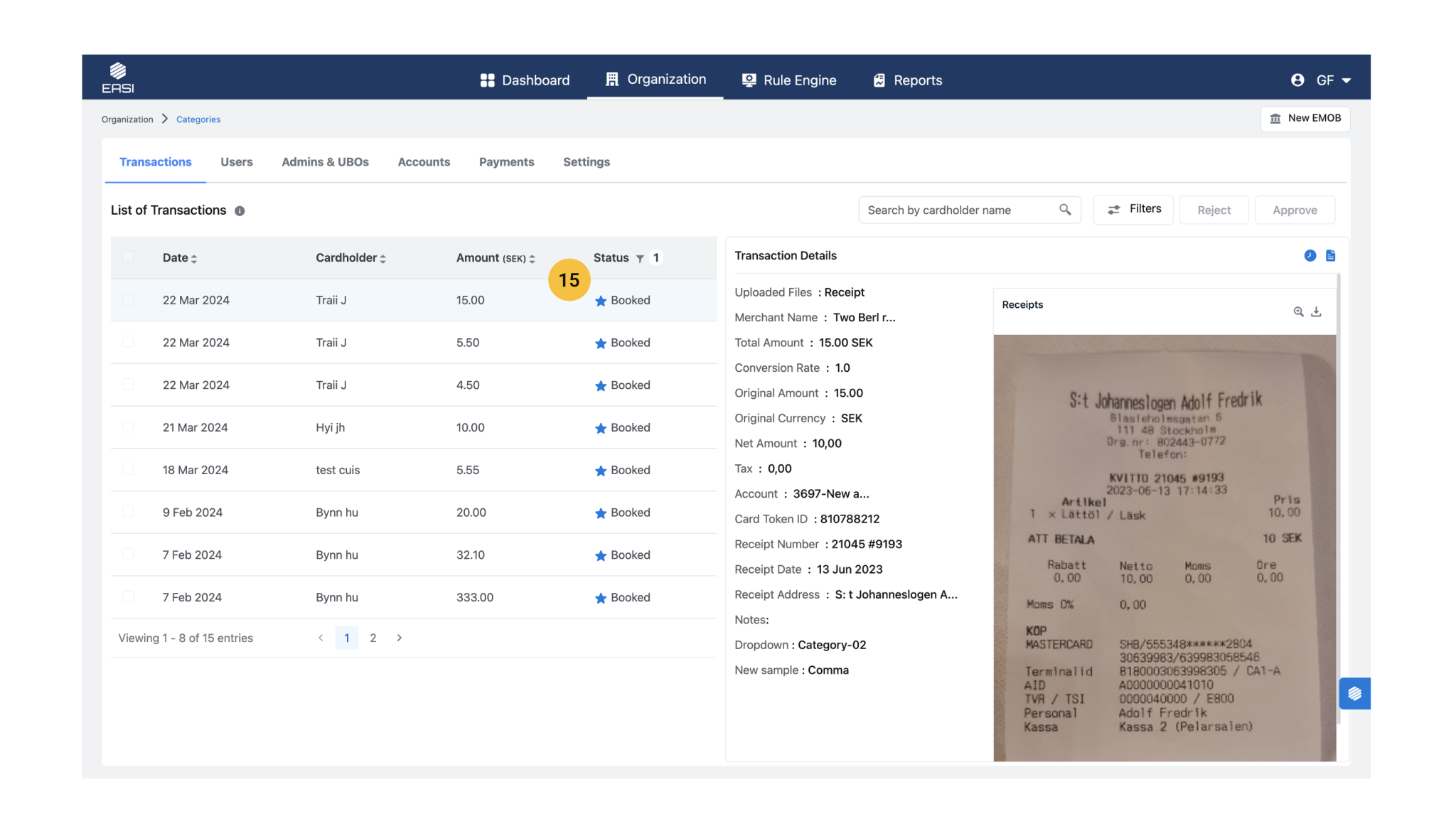
The transactions page shows a list of transactions with different statuses and their details. An admin can review, submit, approve, and book transactions in the ERP from this page. This page can be accessed from the Dashboard or the Organization landing page. The default transaction list will display entries with a Submitted status. Filter can be removed as per requirement.
2 .All payment requests made through the Accounts page are listed here, providing administrators with a centralized view of outstanding payments. From this page, administrators can also take action on previously unprocessed payments by: •Terminating payments that are no longer required •Authorizing payments that were pending approval
TRANSACTIONS WORKFLOW
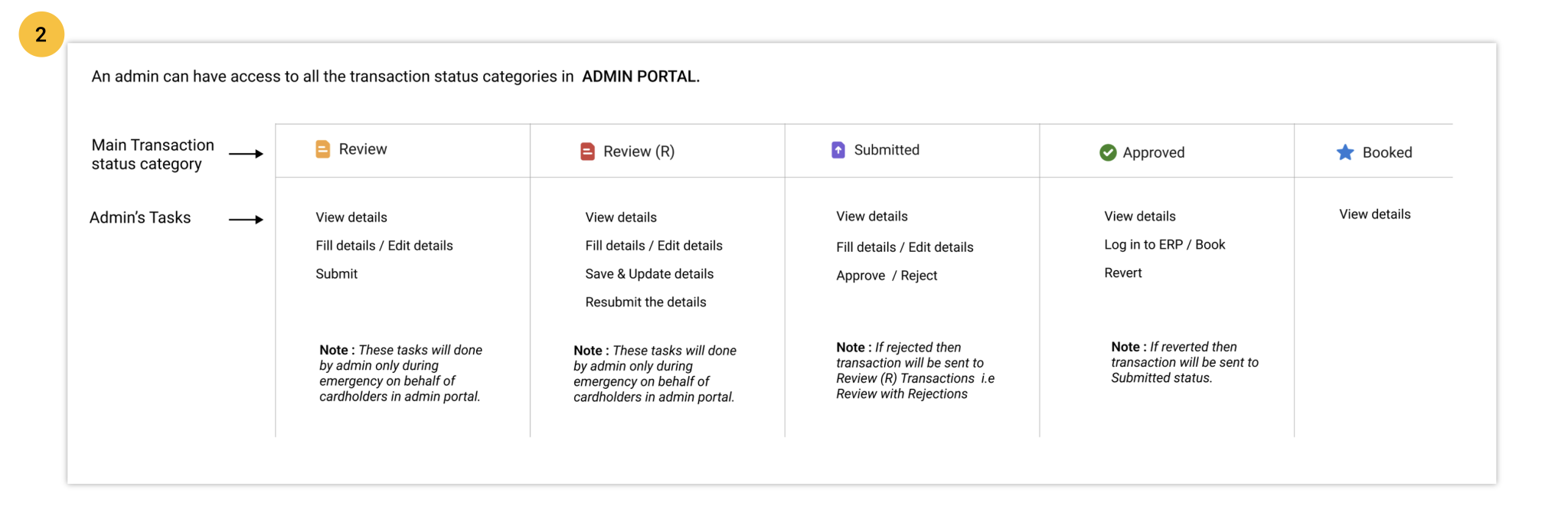
Transaction details are categorized under various statuses, with key statuses being Review Transaction, Submitted Transaction, Approved Transaction, and Booked Transaction. One of the primary responsibilities of an EPMS Admin is to book a transaction into the ERP system for record-keeping.
Here is the workflow for booking a transaction: 1. Review Transaction Details: i.The Admin reviews the transaction details provided by the cardholder, which are listed under the Submitted Transaction status.
2. Approval or Rejection: ii.If the details are correct, the Admin approves the transaction. iii.Note: If the Admin identifies any discrepancies or missing information, the transaction is rejected and moved back to the Review with Rejections status.
3. Preparation for Booking: i.Once approved, the transaction details move to the Approved Transaction status. The Admin will then have the option to log in to the ERP system if not already logged in. iii.Note: If issues are found after approval, the Admin can revert the transaction to the Submitted Transaction status for further review.
4. Complete the Booking: i.After logging in to the ERP, the Admin clicks the Book button to finalize the process. The transaction details are then moved to the Booked Transaction status.
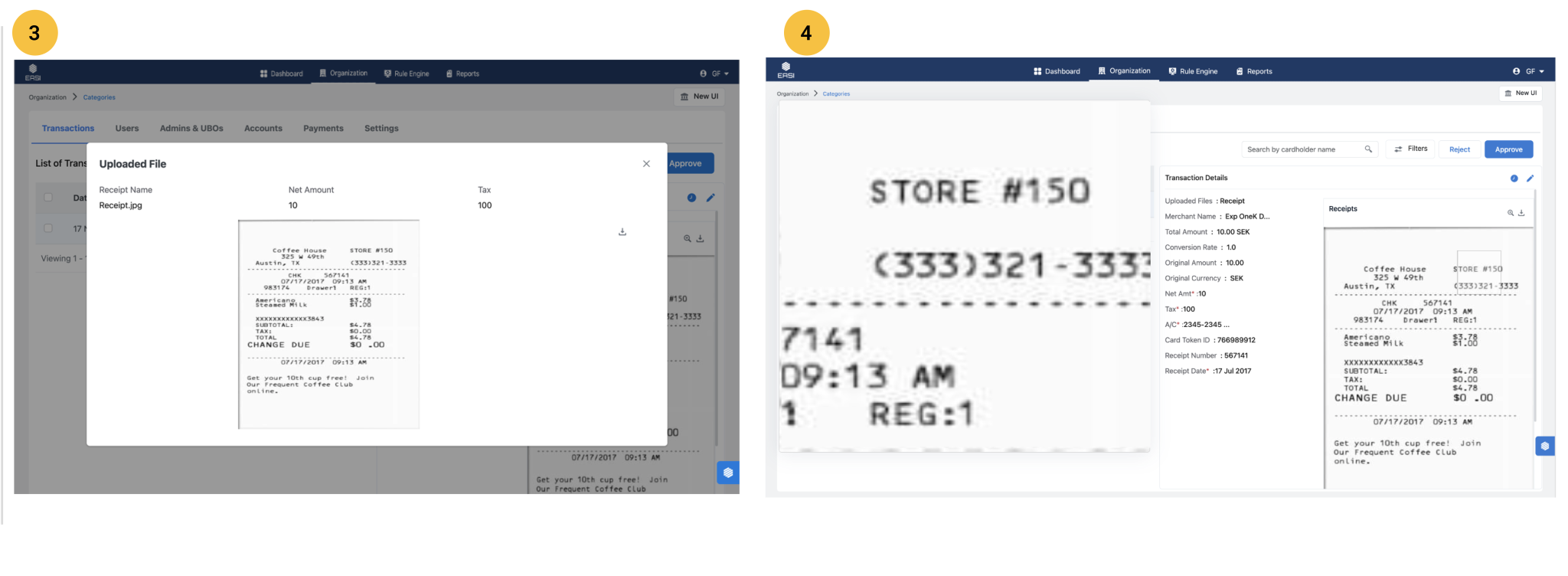
This window provides a clear view of essential data and is optimized for displaying receipt images in a larger size. It opens when you click the magnifying icon next to the Receipts heading.
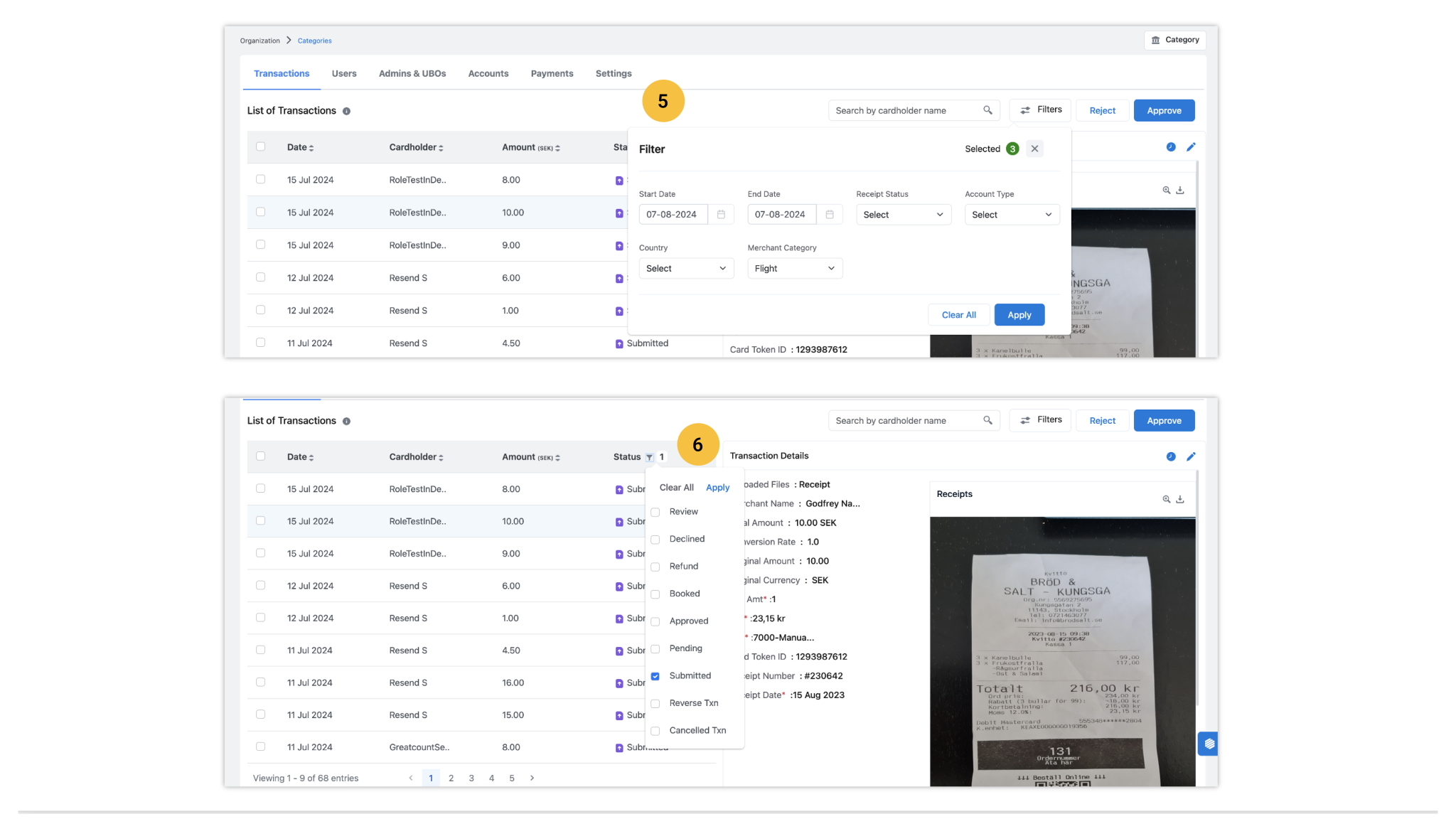
The transaction list can be filtered by transaction status, allowing selection of one or multiple statuses as needed.
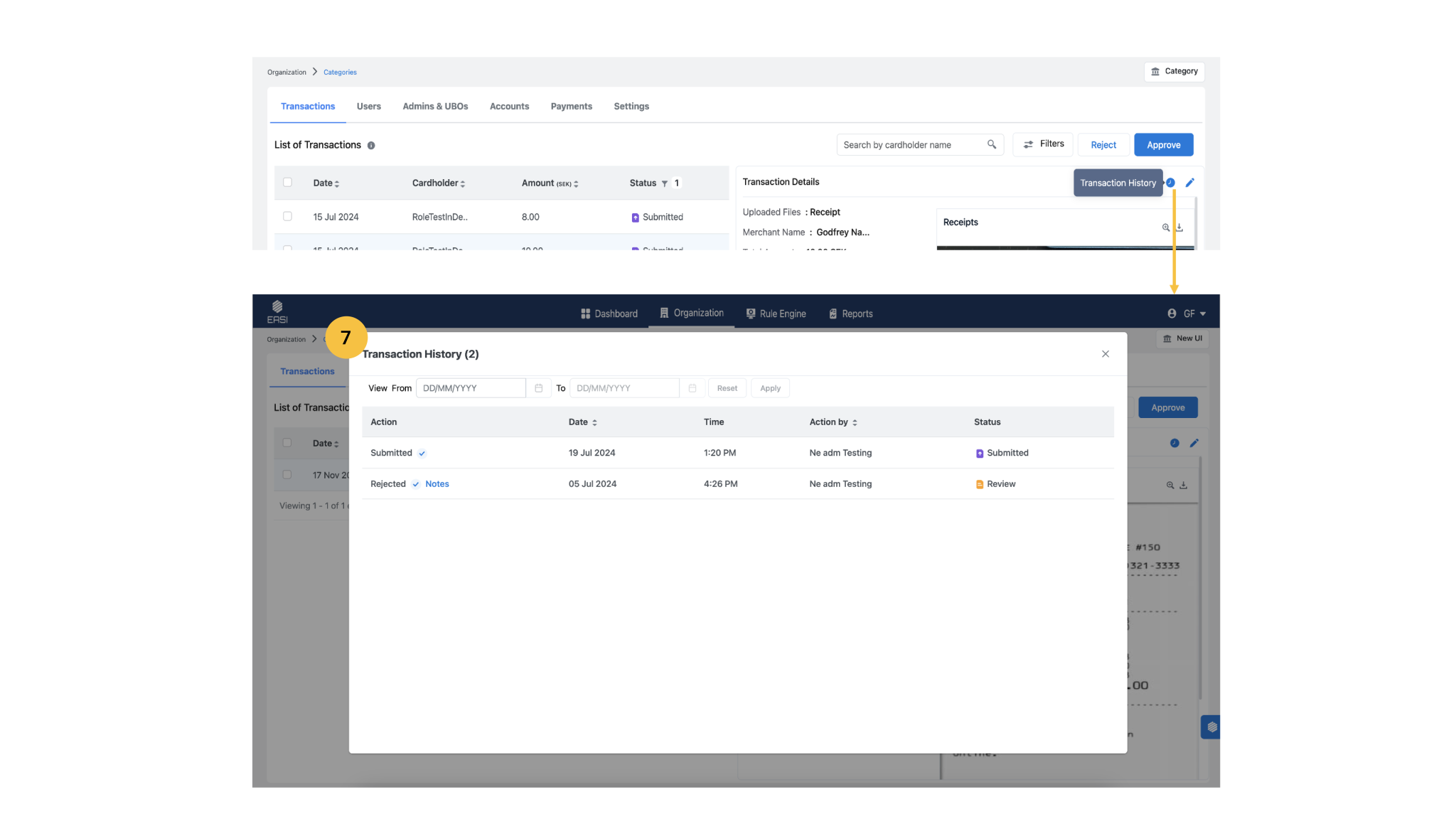
7. Transaction History
Transaction history is to view all actions and outcomes related to specific transactions, including the performer of each task Upon clicking the transaction History icon, it will open a modal window displaying detailed information. Notes related to rejected and reverted transactions are also included.
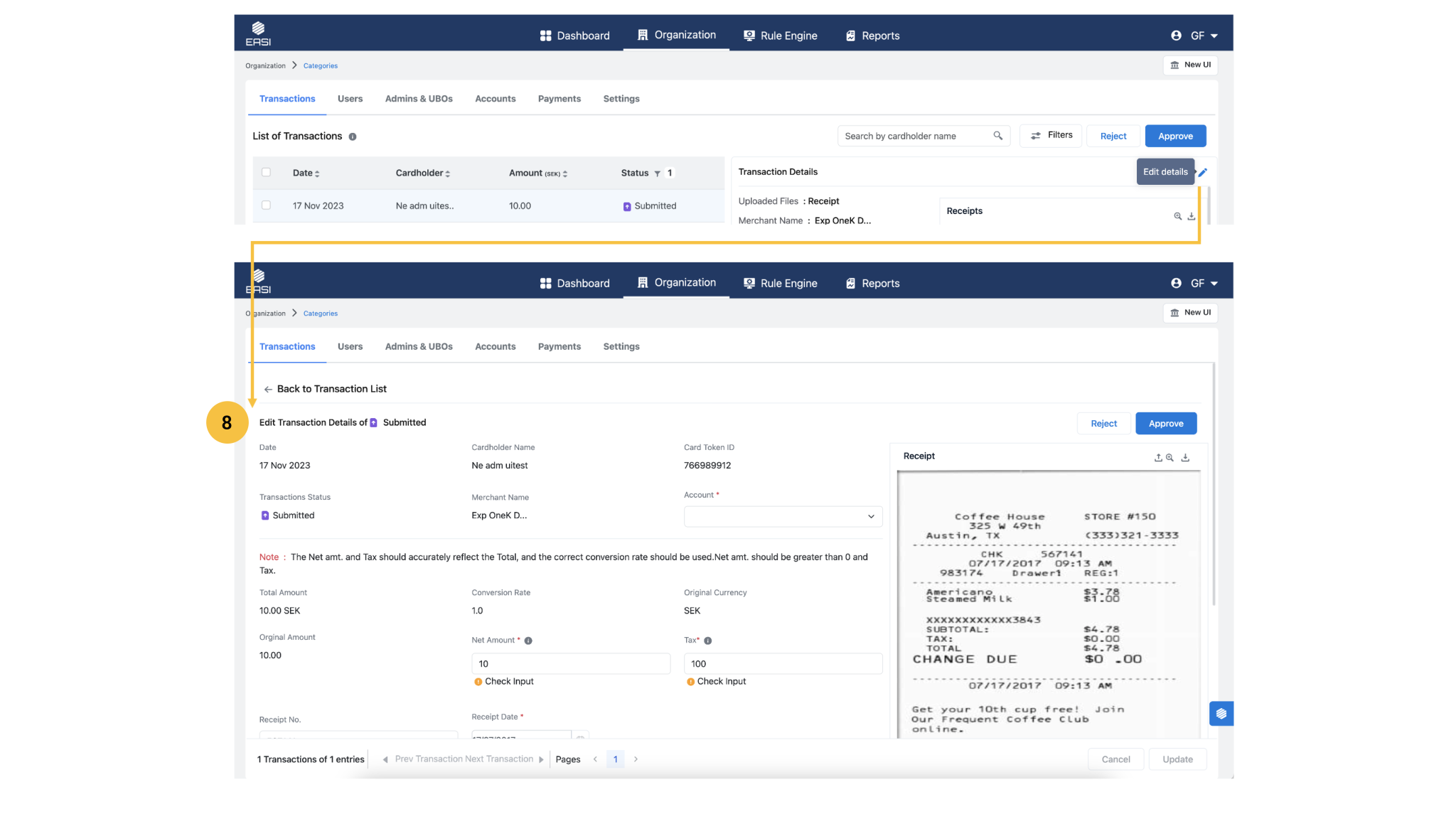
i.Navigate to the “Transactions” page under the “Organization” module and open the list of “Submitted” transactions. Use the status filter to display only submitted transactions. ii.Select the transaction with the “Submitted” status that you wish to review. iii.Click the “Edit Details” icon next to the “Transaction Details” heading to access the edit page. iv.Review the transaction details for any required changes or corrections. v.Make the necessary edits. vi.Click the “Update” button to save your changes. Note: If you navigate away from the page before completing the process, recent changes may be lost. Transactions with Review, Review(R ), Submitted status are editable.
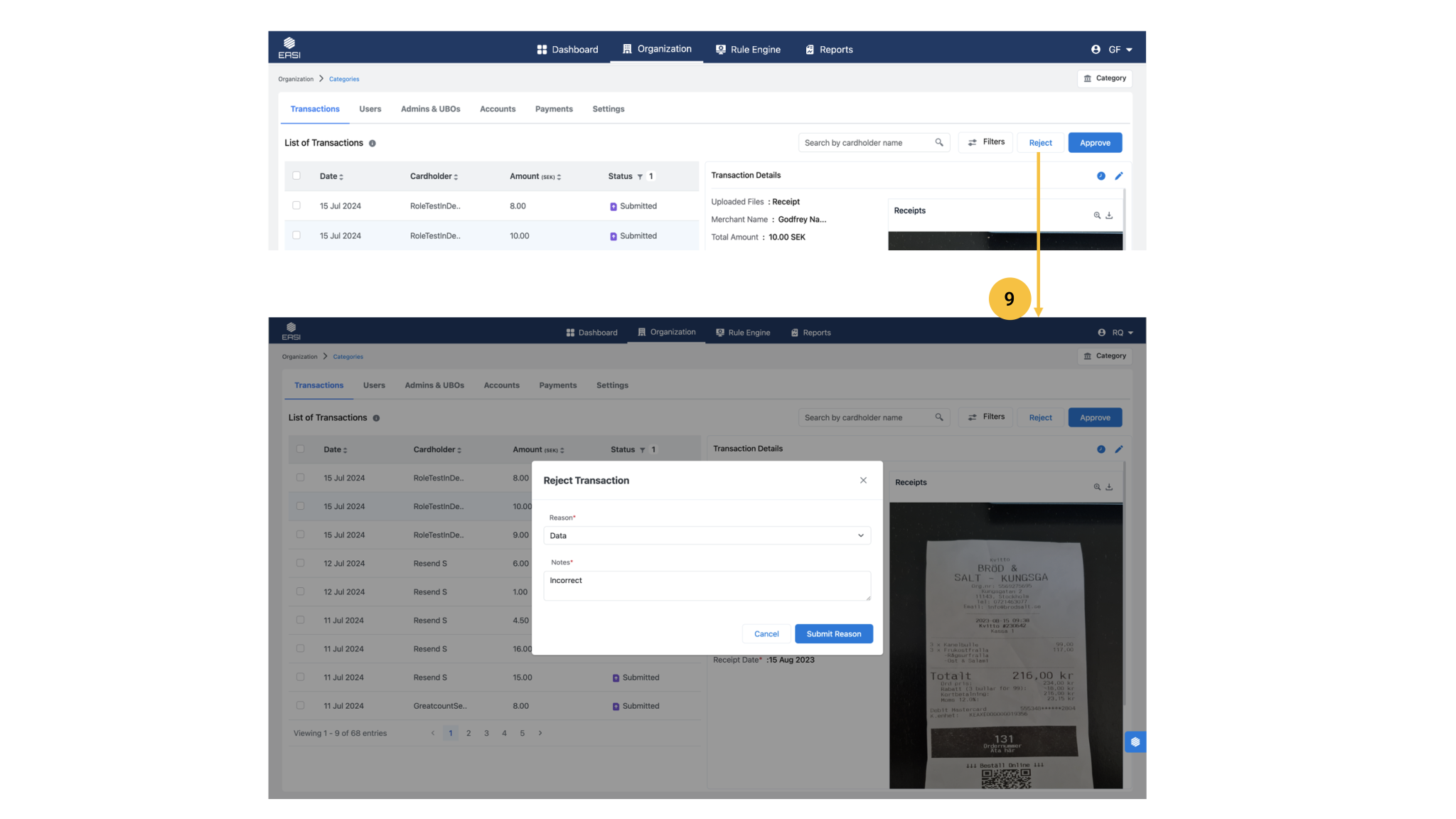
i.Open the list of “Submitted” transactions on the “Transactions” page under the “Organization” module. Note: Use the status filter to view submitted transactions. ii.Select the transaction with a “Submitted” status that you want to review. iii.If you find errors, click the “Reject “button to open the modal window for entering the rejection reason. iv.Provide a “Reason” for rejecting the submitted transaction and add any notes to highlight specific details, if necessary. v.Click “Submit Reason” to complete the rejection process.
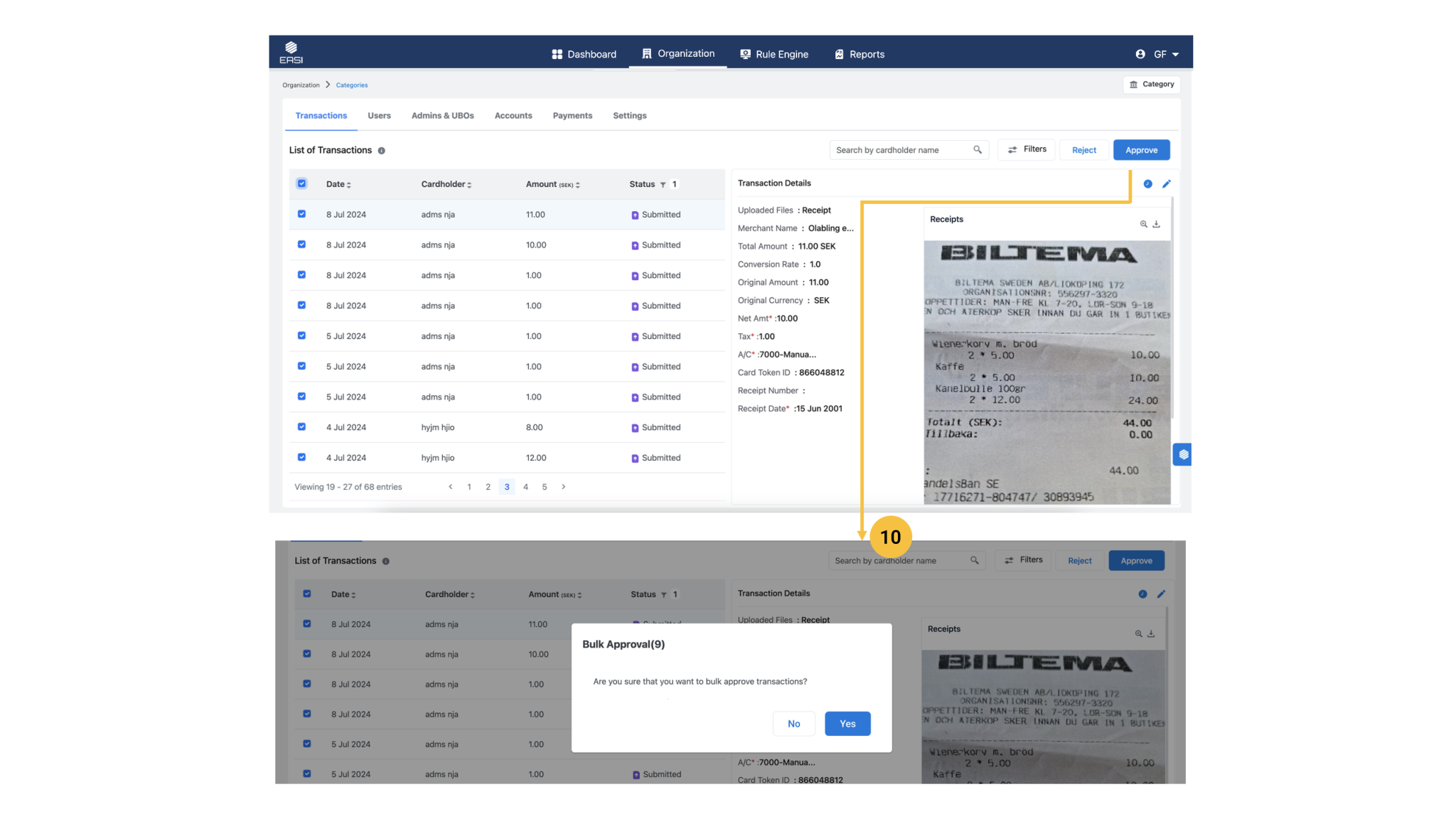
i.Open the list of “Submitted” transactions on the “Transaction” page under the “Organization” module. Note: Use the status filter to view submitted transactions. ii.Select all or the desired group of transactions with a “Submitted “status. iii.Click the “Approve” button. iv.Review the information in the “Bulk Approval” modal window. v.Click “Yes” to confirm the bulk approval.
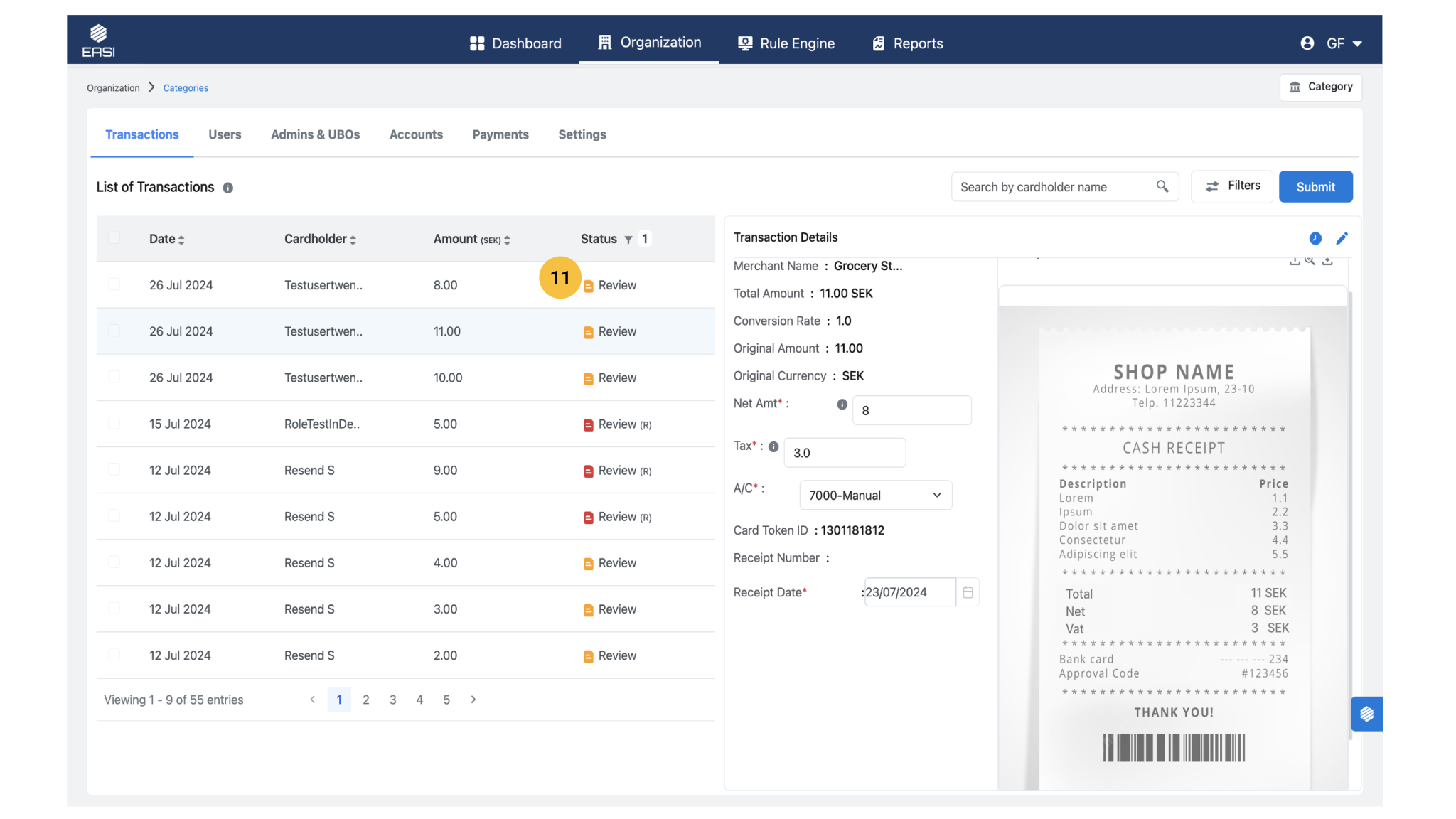
<span data-metadata=""><span data-buffer="">11.Transactions With Review Status<span data-metadata="">
The Admin can view transactions under Review or Review (R), which include details of transactions previously rejected or pending submissions of cardholders. In case of emergency, the Admin can submit transaction details on behalf of the cardholder from this page. Editable input fields are available only in this transaction status category, in addition to the dedicated edit page.
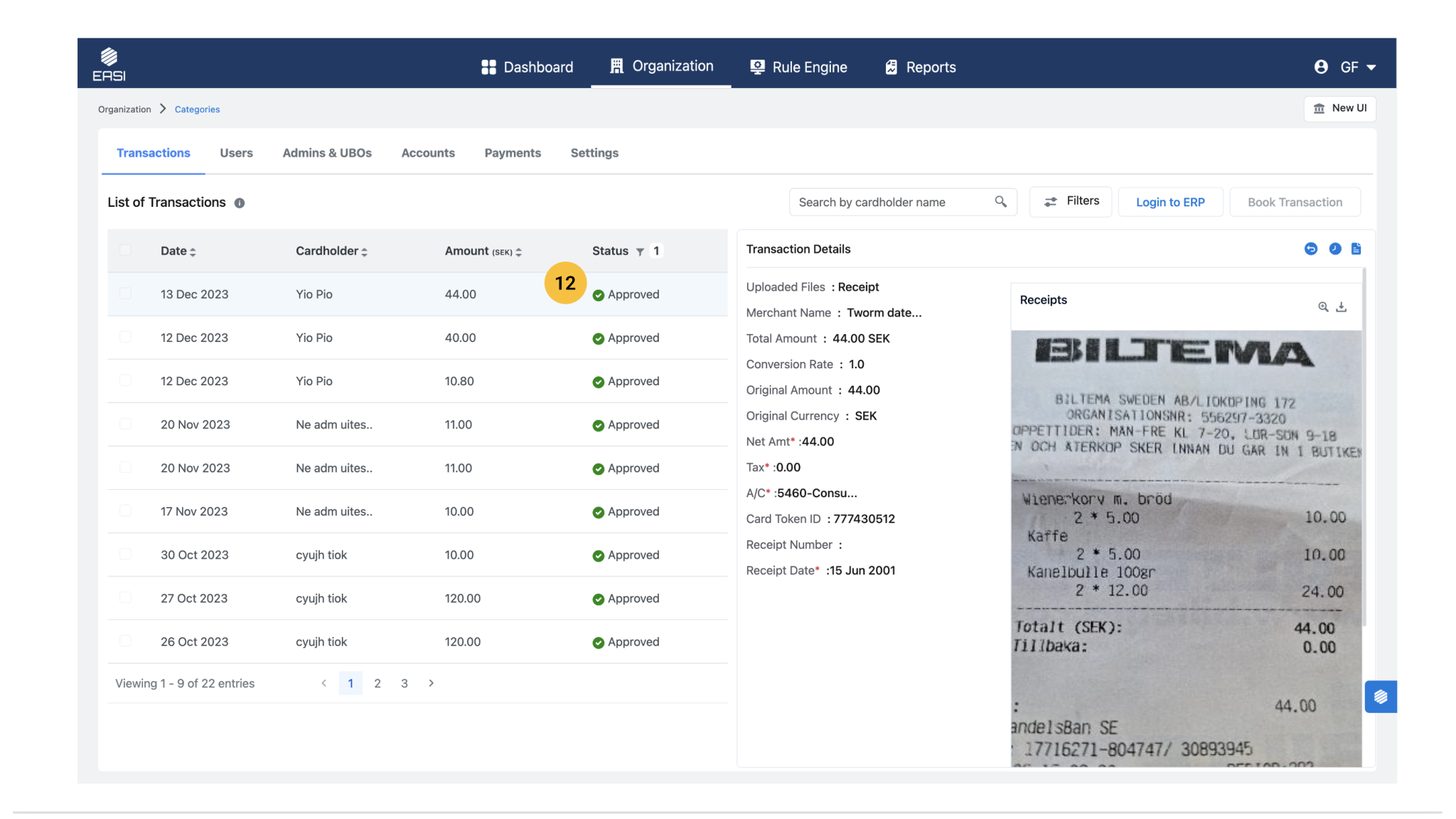
<span data-metadata=""><span data-buffer="">12. Transactions With Approved Status<span data-metadata="">
The list shows transactions approved by the Admin after review in the Submitted Transactions page. From here, the Admin can log in to the ERP or book the transaction directly.
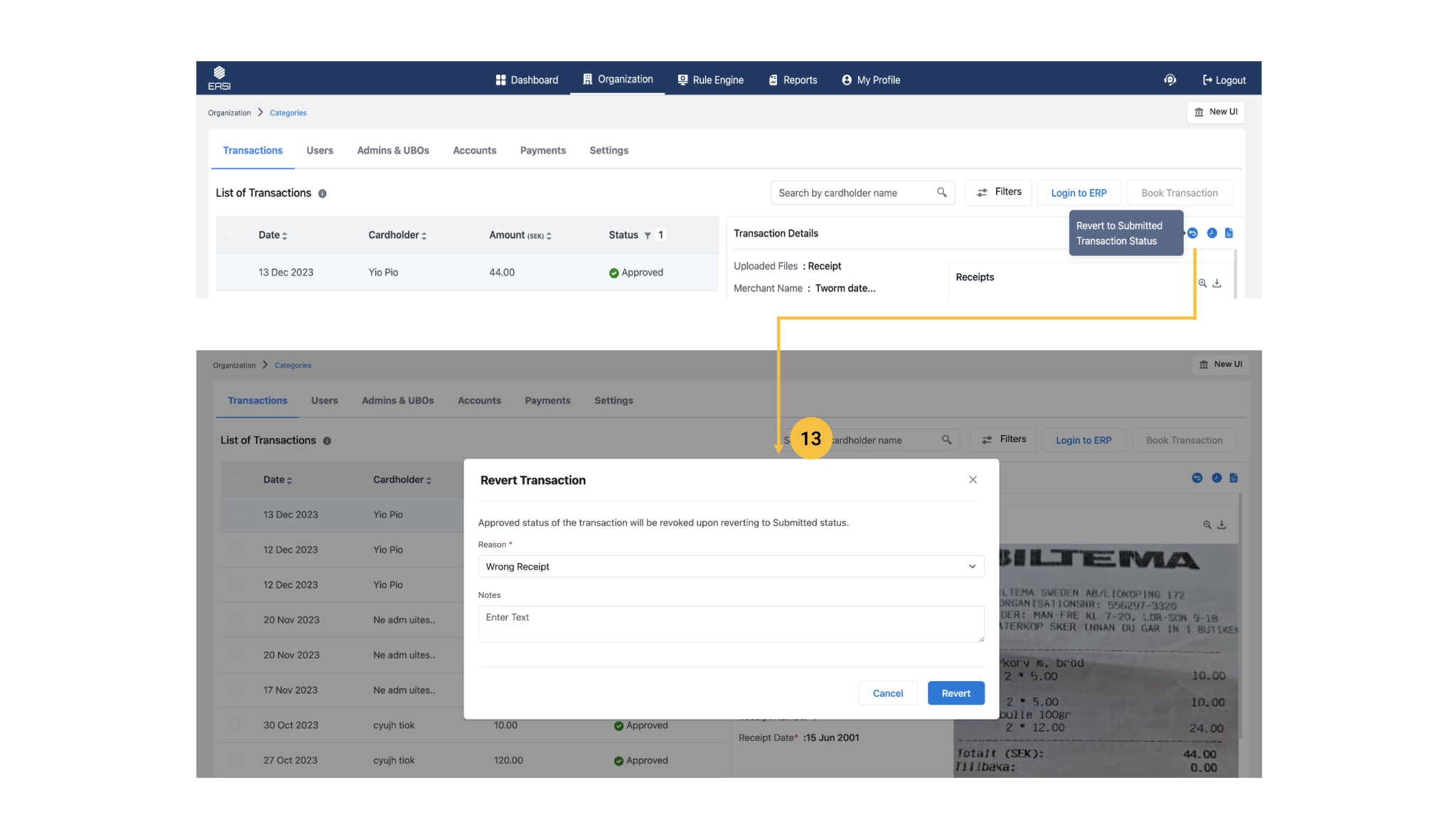
i.Open the list of “Approved” transactions on the “Transactions” page under the “Organization” module. •Note: You can apply the status filter to view all approved transactions. ii.Select the transaction with an “Approved” status that you wish to revert. iii.Click the “Revert to Submitted Status” icon next to the transaction details to open the modal window for entering the reason for the reversion. iv.Provide a “Reason” for reverting the approved transaction, and add any additional notes if necessary. v.Click “Revert” to complete the process.
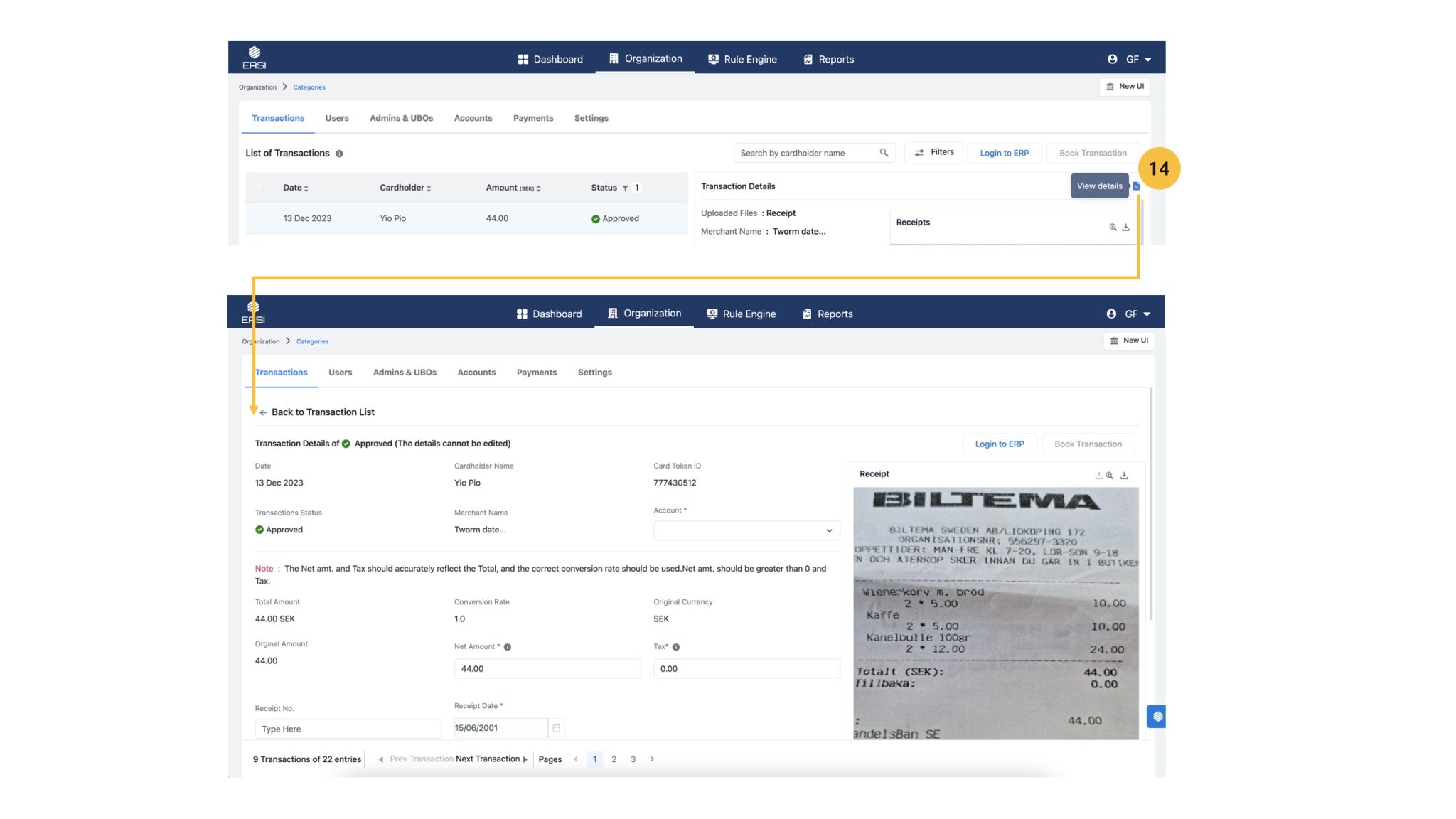
14. View Details Of Transactions With Approved Status
Clicking the View Details icon displays the transaction details under the Approved status. From this page, the Admin can also log in to the ERP or book the transacti
15.Transactions With Booked Status
Booked transactions are the final category in the transaction bookkeeping workflow. Details for these transactions can only be viewed, and admins can access the transaction history if needed.